
How a browser-source lower third works
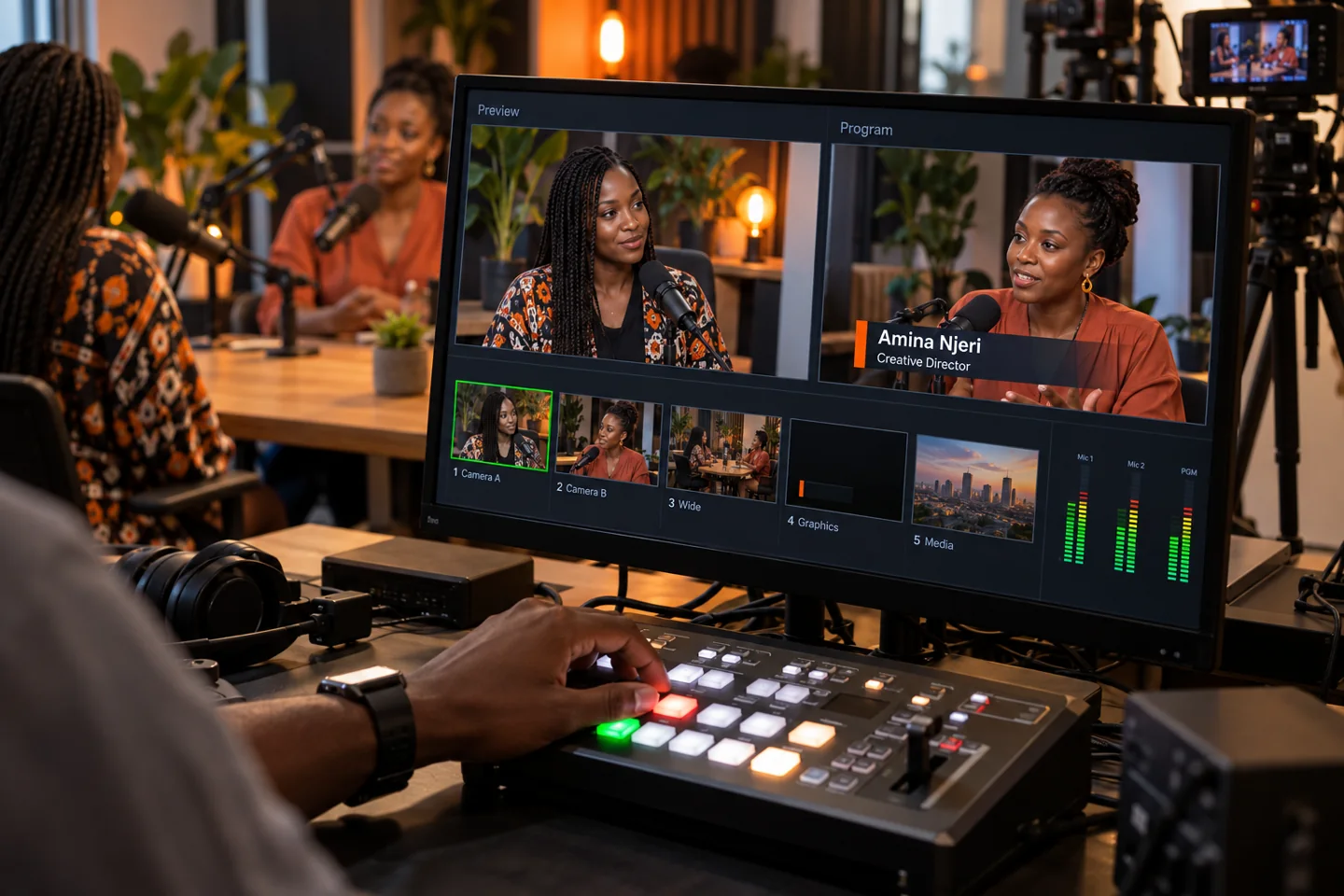
A browser source renders a web page as a layer in your broadcast scene. The page draws the name graphic, while the transparent parts reveal the camera picture underneath. A graphics controller changes the page content; your production software combines that graphic with video.
OBS supports web pages and local files through its Browser Source. vMix offers a Web Browser input with configurable render dimensions and support for transparent backgrounds. These tools provide the display layer; a graphics platform still needs a reliable way to deliver content updates.
Match the graphic canvas to your show
For a 1920 × 1080 production, begin with a graphics canvas and browser render size of 1920 × 1080. Place the name graphic within that canvas rather than stretching a small panel across the entire video. Keep comfortable margins and check the result on a phone as well as a monitor.
Preview a long speaker name, a two-line job title and your logo before rehearsal. If the text wraps or covers a face, shorten the supporting line or choose a more compact design.
Preparing your Overlay by LMN output
The editor synchronizes the control and transparent output between tabs in the same browser profile. OBS and vMix use separate embedded browser environments, so they do not receive those browser-local updates. Direct cross-browser control requires a shared update service.
For a visual rehearsal, you can capture the output browser window. Window capture does not preserve the page’s alpha transparency. Check layout and wording during rehearsal, then confirm your output connection before the production.
A rehearsal checklist
Confirm spelling, canvas dimensions, safe margins, output transparency and the behaviour when the source becomes visible again. Test the complete setup with your actual encoder and scene collection before an event.
Keep the graphics operator and stream operator aligned on when a name appears and when it clears. For multiple guests, prepare names and roles in advance rather than typing them during an introduction.