
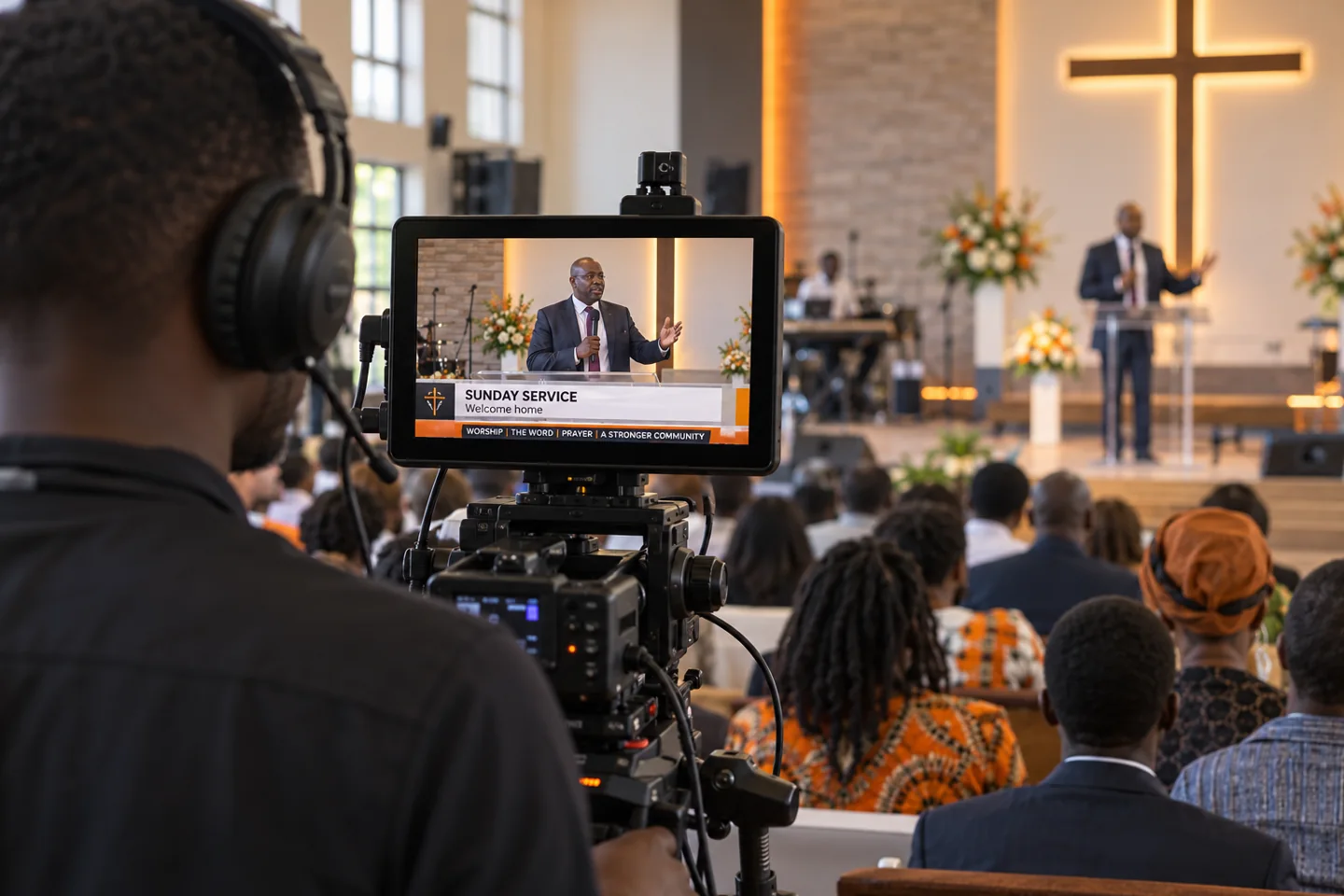
Use a lower third for the information viewers need now
Introduce the speaker with a name and role. When a sermon begins, a short title or theme can provide context for people joining late. Keep supporting information brief so the graphic does not compete with the speaker.
For example, a name line could read “Grace Wanjiku” with “Guest speaker · Sunday service” below it. These are sample details, not a claim about a real congregation or event.
Give announcements their own ticker
A ticker is useful for a short sequence of upcoming activities: a youth meeting, volunteer briefing or collection point. Put the most useful information first and separate items clearly. Long paragraphs become difficult to follow as they scroll.
Use an integrated ticker design when you want the announcement strip and speaker panel to share a consistent style. Pause the crawl during rehearsal and check that the message remains readable at the size people watch.
Keep branding readable and restrained
A small corner logo can identify the church without covering the camera picture. Choose colours with enough contrast for mobile viewing and keep the name line visually stronger than the role line.
A full Bible passage or song may need a dedicated text layout. Do not force lengthy readings into a compact speaker-name graphic. Match the graphic type to the amount of information.
Prepare service text before you go live
Collect names, titles, event times and announcement wording in advance. Document text recognition can help turn a photo of a notice into editable text, while AI writing assistance can suggest shorter headlines or ticker wording. Review every name, date and time.
Try a lower third template in the editor, then read the OBS/vMix testing guide before using a separate broadcast output. Rehearse graphic timing with the people operating the stream.