
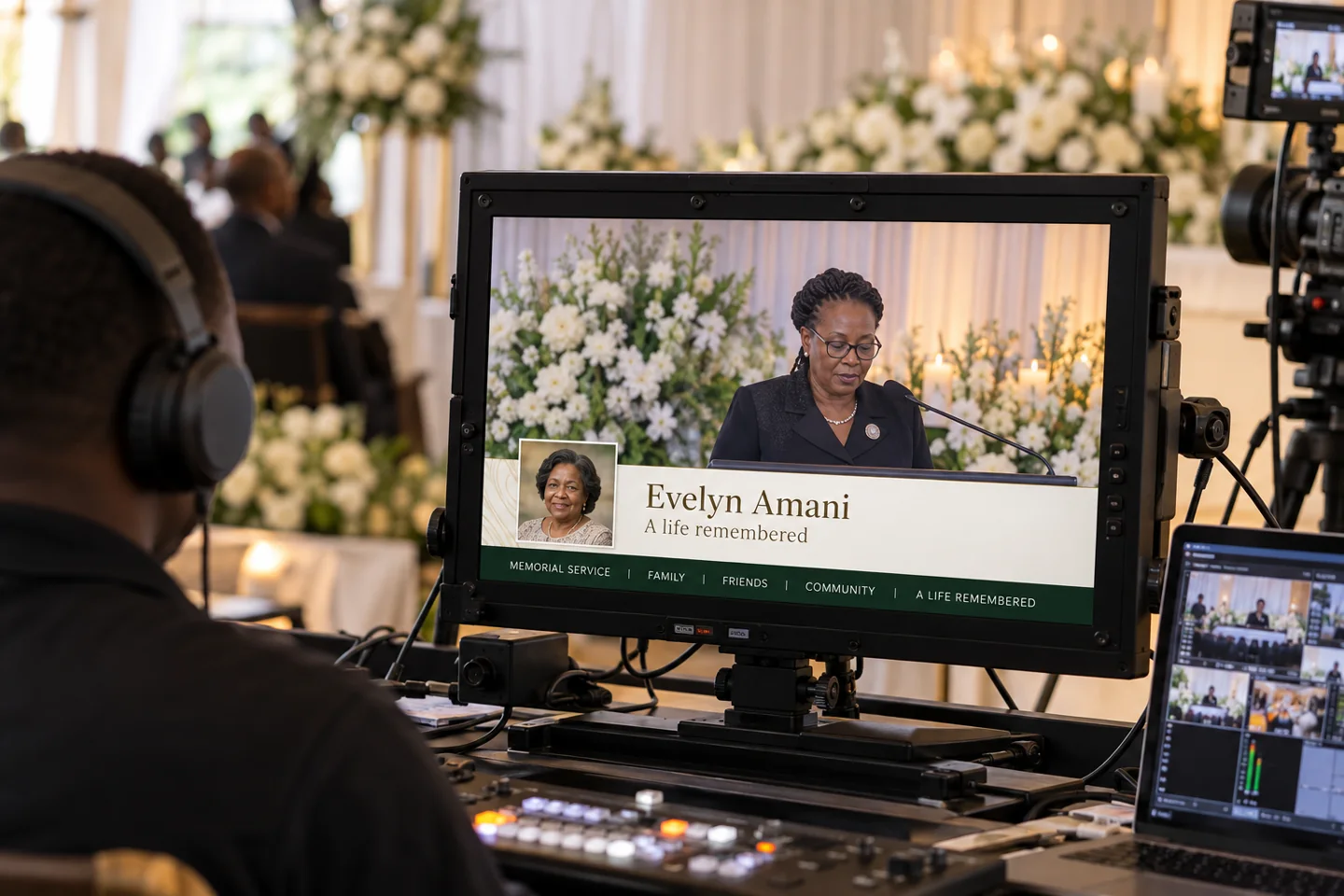
Let the portrait and name lead
Choose a clear portrait with comfortable space around the face. Avoid stretching a wide photo into a narrow frame or cutting off the top of the head. Use the person’s preferred name and confirm its spelling with the family or organiser.
The Tribute concept pairs a portrait panel with a quiet ivory nameplate and an integrated green ticker. The example portrait and name are fictional. You can select your own portrait for the preview.
Keep service details separate from the main nameplate
Use the nameplate for a name and a brief supporting line. Place practical notices in the ticker: the order of service, the next tribute or where viewers can find confirmed arrangements. Avoid moving large blocks of biographical text across the screen.
If dates or personal details are included, check them against the approved programme. Use only the portrait and information the organiser wants to appear in the broadcast.
Prepare ticker text from an obituary or programme
A printed service programme or tribute document can be a starting point for on-screen wording. Text recognition converts words in an image into editable text. AI assistance can suggest a concise heading, supporting line or ticker message.
Review the source and the suggested wording carefully. A warm, accurate sentence is more useful than an embellished summary. Names, dates and family relationships deserve particular care.
Rehearse with the actual video
Check the graphic against a wide shot and a close-up. Keep it away from faces and make sure its text is readable against the footage. A restrained fade or typewriter reveal can be tested in the preview; choose the motion that suits the tone of the service.
The current preview runs locally in the browser. Read the broadcast setup guide for the limits of direct synchronization with OBS and vMix before planning a production feed.